What's in the book
The book is the boat's own record. It lives on the boat, and it fills itself in as the boat is used. Tap Book on the Home screen.
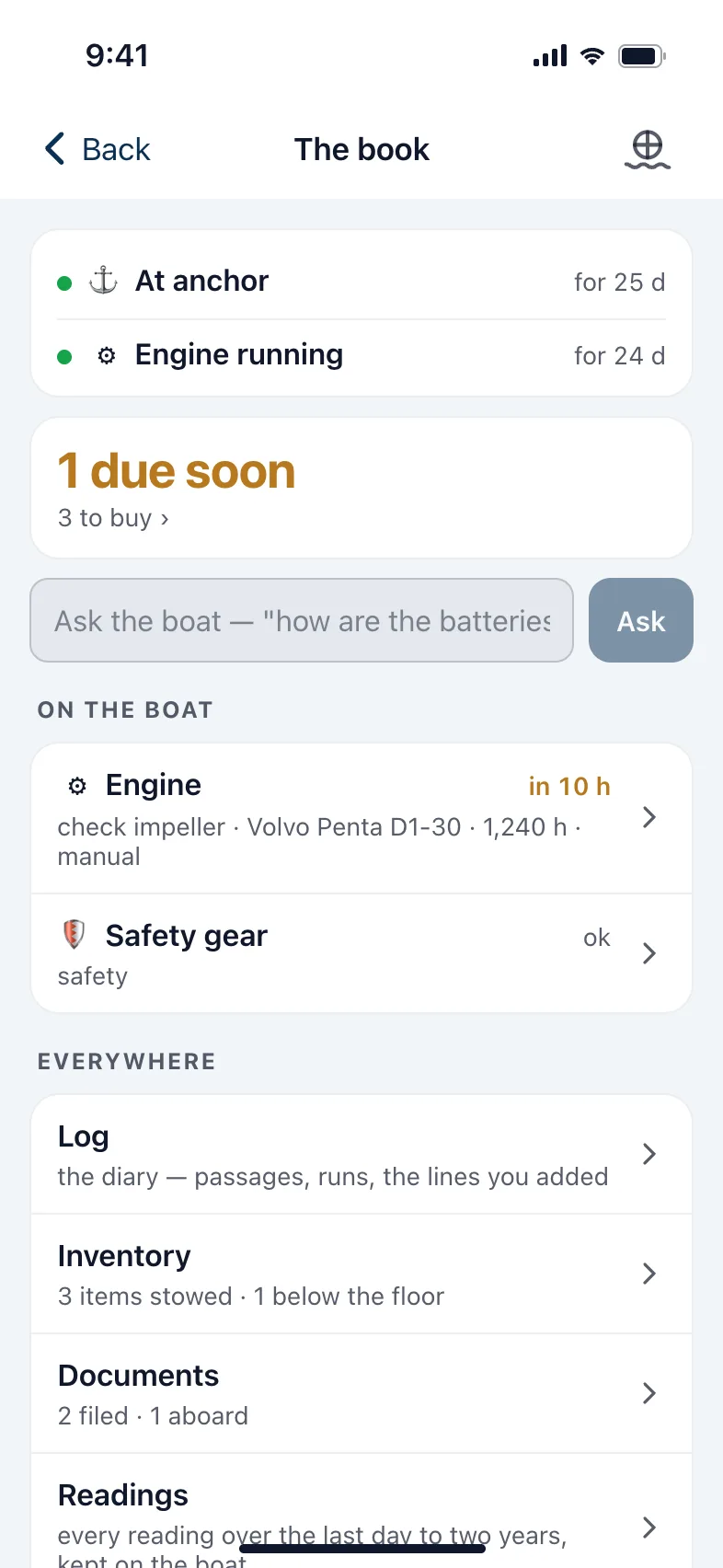
- At the very top: anything happening right now, such as an engine run or a passage, and how long it has been going.
- Under it: what's overdue or due soon, or Nothing due, and how many things are on the list to buy. Tap it to see what to buy.
- On the boat: each piece of equipment, with its next service.
- Everywhere: the Log, the Inventory, your Documents, and the boat's Readings.
Note: On the boat's Wi-Fi, the book is here, except your documents and questions about your manuals, which live in the cloud copy. To read it and add to it away from the boat, the boat keeps a copy in the cloud, but only if you turn that on: Settings › Data usage › Keep a copy in the cloud. It's off unless you do.
The log
Nobody has to type anything: a boat that's used has a log. The boat writes:
- each engine run, from start to stop, with the engine hours;
- each passage, from when you get under way until you anchor or stop;
- when you anchor and when the anchor comes up;
- a line every hour while under way;
- every alarm, when it goes off. For a man overboard, also who cleared it and when.
Times are on the boat's clock, wherever your phone is. Tap a passage or an engine run to see what happened during it. Tap Everything at the top left to see just Passages, Engine runs, Anchorages, Alerts or Lines I added.
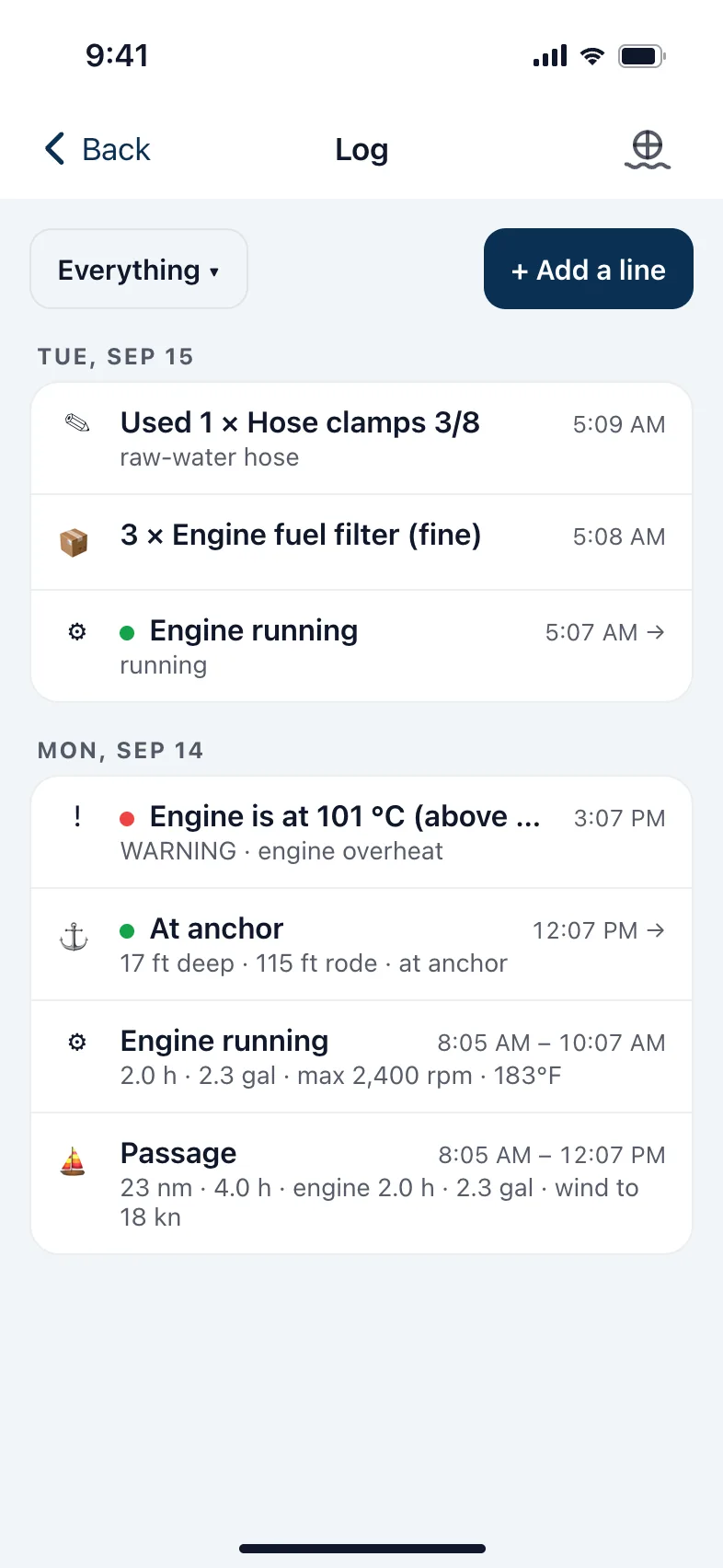
To add your own line:
- Open Log and tap + Add a line.
- Choose Note, Event, Fuel or Incident.
- Fill it in. For an event, pick what happened: Departed, Arrived, Reefed, MOB drill and so on. For fuel, the amount and what you paid.
- Tap Add to the log. The boat's position is stamped on it automatically.
Equipment and maintenance
Every engine Nexus hears is added for you. To add anything else, such as a tender, an outboard or a watermaker:
- Tap + Add something to look after at the bottom of the book.
- Choose its Type, give it a Name, and add the make, model and hours if you know them.
- Tap Add. If the book knows that kind of equipment, it gets a starter maintenance schedule.
Tap a piece of equipment to see its page: what's Due, Everything else on its schedule, and its manuals.
On each job:
- I did this logs the service, and takes the parts it uses out of the inventory.
- Last done… tells the book when it was last done, by date or hours, so it can count from there.
- Expires…, on safety gear, takes the date printed on it.
- Turn off stops a job that doesn't apply to your boat from coming due. It stays on the page, marked off. Turn on brings it back.
The boat raises an alert when something is due soon or overdue, so it reaches your phone like any other alert.
Add the manual
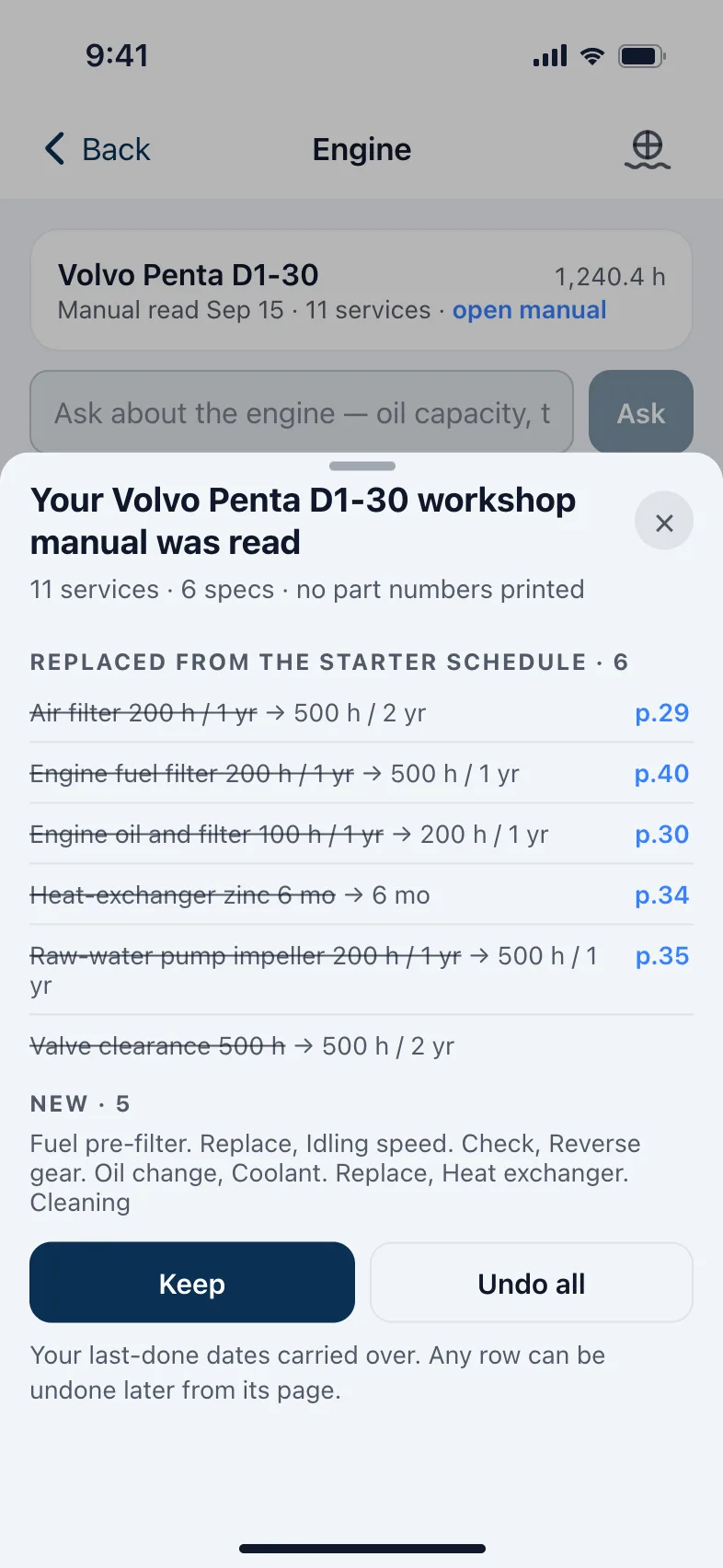
Tap + Add a manual or document on an equipment's page and add its manual. The book reads it: the services and their intervals, specifications, and part numbers. It then shows you what it changed from the starter schedule. Tap Keep, or Undo all. You can undo any single line later from its page.
The book reads manuals in the cloud, so this needs the cloud copy turned on. Once a manual is filed, the equipment's page has its own box for questions about it.
Inventory
Everything you keep aboard, and where: spares, tools, rope, provisions, safety gear. View it By locker, By category, or Expiring.
- Tap + at the top to add an item. Give it a locker, how many you have, Never fewer than (the least you want aboard) and, for things like flares or the first-aid kit, when it Expires. Then choose when to Remind me: a number of days before, or Don't remind.
- Tap − on an item when you use one; that writes a line in the log. + is for corrections.
- Items running short turn amber and go on the list to buy. Expiring items raise an alert before they expire, and again once they have.
- Categories, at the bottom of the Inventory, lets you add your own, rename them, or hide the ones you don't use.
Export the inventory
Tap Export the inventory at the bottom of the Inventory to get everything aboard as a spreadsheet file (CSV): each item with its category, locker, how many you have, the least you want aboard, whether it's running short, when it expires, its part numbers and notes. Your phone's share sheet opens, so you can email it, save it to Files, or open it straight in Excel, Numbers or Google Sheets. It's always the whole inventory, whatever you've searched for.
Lockers
Make as many lockers as you like, and name them the way you'd say them aboard: "Port lazarette", "Under the saloon berth", "Bin by the companionway". Put each item in its locker, and next time you need it, search for it and the book tells you where it is. Open Lockers at the bottom of the Inventory to add, rename, move or remove them. Removing one asks where its items should go.
Lockers can sit inside each other, such as a bin in the lazarette. A search for the lazarette finds what's in the bin too. Renaming a locker moves everything in it along with it.
Documents
Manuals, receipts, the insurance certificate, the registration: a photo or a PDF. Tap + File something, choose the file, give it a title and say what kind it is and what it's for. Tick Keep a copy on the boat to have it aboard even without internet, and tap File it.
Note: Documents are kept in the cloud copy of the ship's log, so filing them needs the cloud copy turned on. Remove deletes a document straight away, without asking.
Ask the book
Type a question in the box under the due list, such as "how are the batteries?" or "when is the impeller due?", and tap Ask.
- Questions about the boat right now, such as batteries, depth or the engine, are answered on your phone from the live readings.
- Questions about your manuals and log go to the cloud copy. The answer shows the manual page it came from; tap it to open the manual at that page.
With the cloud copy turned on, the box shows once you've filed at least one document.
Readings
Readings draws any reading the boat has kept, from the last 24 hours to the last year: batteries, engines, tanks, depth, wind and more. The history is kept on the boat.
Version 1.1 · updated 2026-10-18