Your instruments
Tap Dashboard on the Home screen. Each dashboard is a page of widgets: depth, speed, wind, the anchor, batteries, tanks, engines, pressure and tide, and more. Swipe sideways between dashboards, or tap the dots at the bottom.
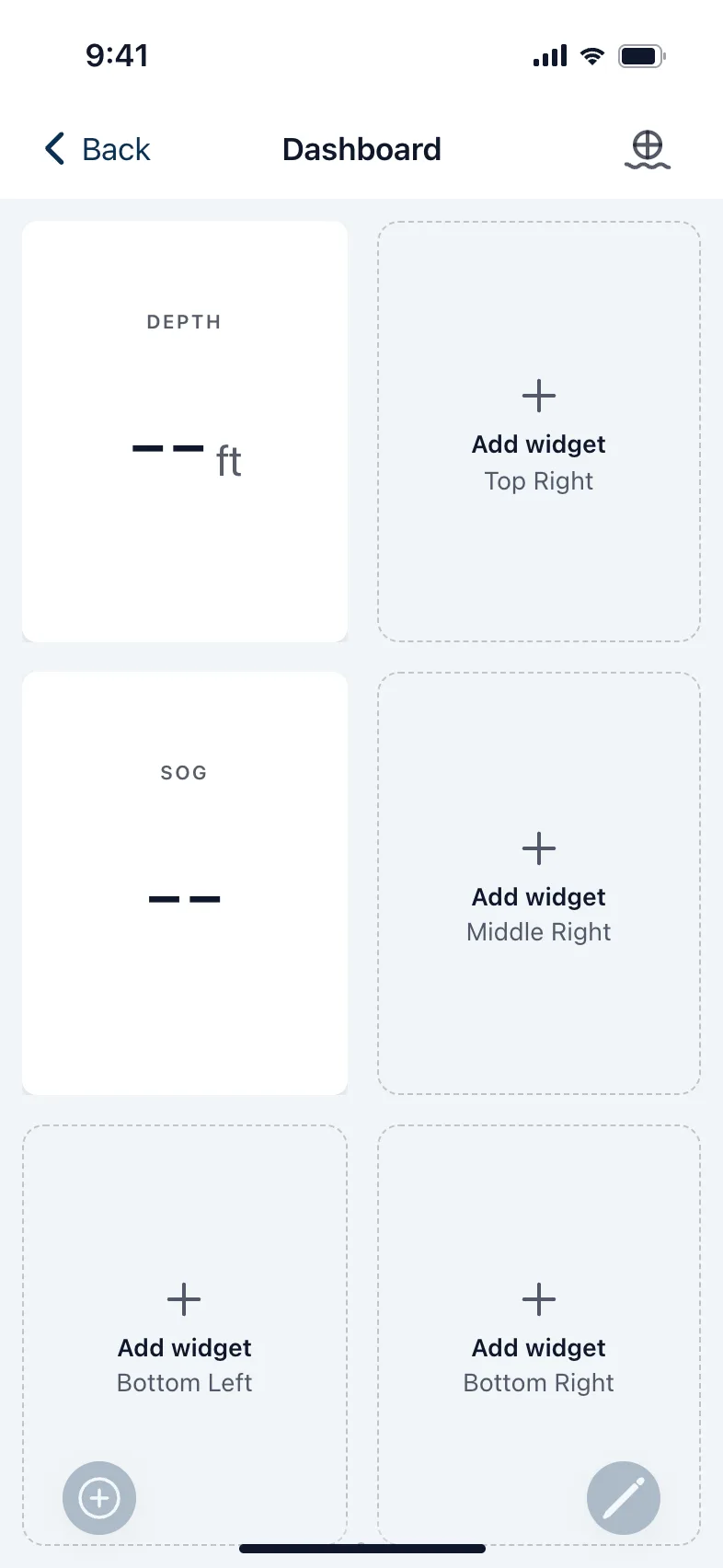
The buttons fade after a few seconds so the instruments have the screen; touch it to bring them back. Pull down to ask the boat for fresh numbers.
Note: Dashboards are kept on this phone, for each boat. Each person and each device can lay theirs out differently, and switching boats switches to that boat's dashboards. A boat you have not used on this phone starts with one empty dashboard. When a boat comes off your account, its dashboards are deleted from this phone, and if you join it again it starts empty.
Make a dashboard
- Tap + at the bottom left. A new, empty dashboard opens.
- Choose a layout: one big widget, two or three stacked, a cross, a grid, or Custom Layout. On a tablet there are Anchor Watch layouts too.
- The layout starts empty. Tap a slot's Add widget to fill it. Custom Layout has no slots: tap the pencil, then the small + at the top right.
Change a widget
- Tap the pencil at the bottom right. Each widget shows a pencil and a red bin.
- Tap a widget's pencil, choose its Widget type and Data source, give it a Display label if you like, and tap Save.
- Tap an empty slot's Add widget to fill it.
- Tap the tick when you're done.
The red bin removes a widget straight away, without asking.
In Custom Layout you can also drag a widget by its handle, and resize it from its corner, while editing. In the other layouts the slots are fixed: to move a widget, remove it and add it again where you want it.
Change or remove a dashboard
While editing:
- The grid button changes the layout. The widgets on that dashboard are removed with the old layout, after asking.
- The red button deletes the dashboard and every widget on it, after asking. If it's your only one, it empties it instead.
Tip: On the boat, turn on Settings › Keep the screen awake, and a dashboard stays on the screen.
Version 1.2 · updated 2026-10-18