Before you start
- The Nexus unit is installed and switched on (see Setting up the hardware).
- You're on the boat, with your phone.
- You know the name and password of the Wi-Fi you want the boat to use, usually the marina's.
Install the app
Install Nexus on your iPhone, iPad or Android phone or tablet.
Note: During testing, use the invitation we sent you: TestFlight on iPhone and iPad, or the Firebase App Distribution email on Android.
Sign in or create your account
There are no passwords in Nexus. The same buttons sign you in or make your account.
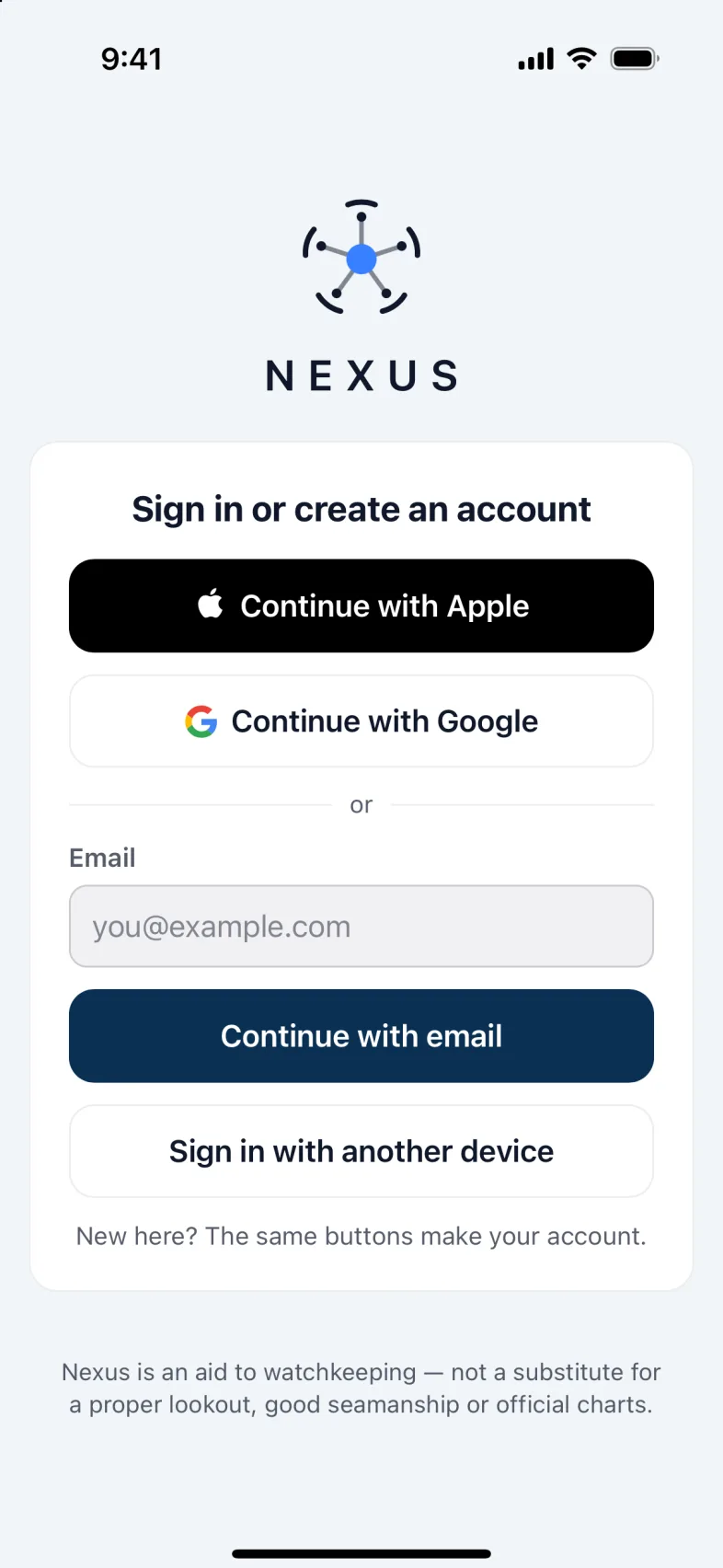
- Choose Continue with Apple (iPhone and iPad), Continue with Google, or type your email and tap Continue with email.
- If you used email, we send you a 6-digit code. Type it in. It works for 10 minutes; Send a new code gets another. You can ask for a new code once a minute.
- New accounts see Welcome aboard. Enter Your first name: your crew will see it.
- Tick I agree to the Terms of Service and the Privacy Policy, then tap Add your boat.
Connect your boat
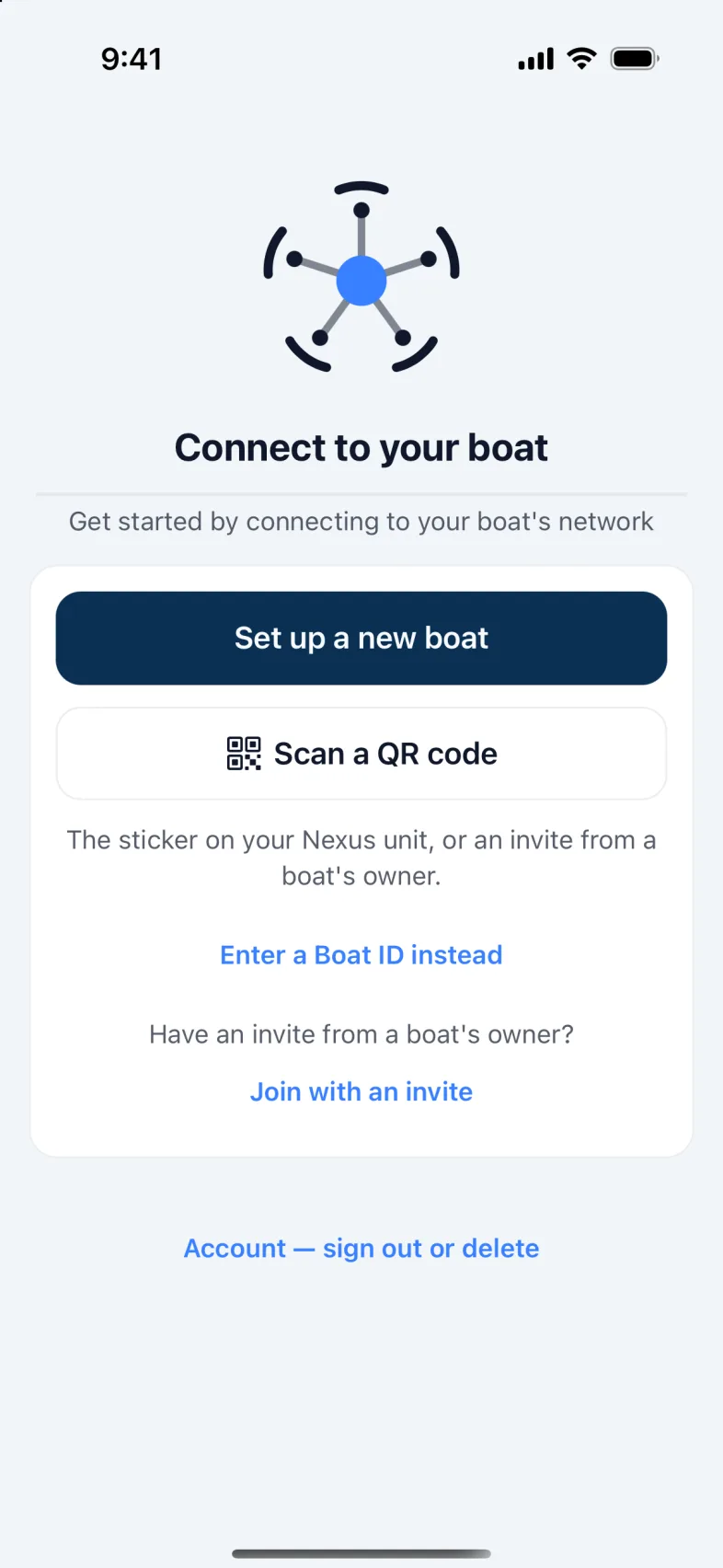
- Tap Set up a new boat.
- Join the boat's own Wi-Fi: the network named Nexus- followed by four characters, printed on the unit's sticker. On an iPhone or iPad, tap Scan the sticker and point the camera at it. On Android, join it in your phone's Wi-Fi settings and come back. The app keeps looking.
- Tap Find boat. When it says Found, and the boat isn't online yet, the app asks which Wi-Fi the boat should use. A boat that is already online goes straight to the next step.
- Enter the Network name and Password of the marina's Wi-Fi (or your own router), then tap Connect boat to Wi-Fi.
- Wait while the boat joins, secures its connection and is added to your account. You'll see Boat added.
- Give your boat a name and choose Sail or Power, then tap Save. Not now skips this. You can change it any time on the boat's page, and choose a catamaran there.
Tip: When your phone joins the boat's Wi-Fi, a setup page may pop up on its own (Welcome aboard). You can follow it instead: it walks through the same steps and ends with Open the Nexus app.
If the boat has no internet yet, it is still added: you'll see "Boat added. It will connect to the Cloud the next time it's online."
If something goes wrong, the app tells you what happened. The common ones:
- No boat found. Your phone isn't on the boat's Wi-Fi. Phones sometimes jump back to another network; join Nexus-… again and tap Find boat again.
- The password looks wrong. The boat couldn't join the Wi-Fi you entered. Check the name and password.
- A Wi-Fi password is 8 to 63 characters. Check the password. Leave it empty for an open network.
- Timed out waiting for the boat. It may still be finishing. Wait a minute and try again.
- This boat already has an owner. Someone has set it up already. Tap Request access, or I have an invite if they sent you one.
- Camera access was declined. Allow the camera for Nexus in your phone's settings, or join the Wi-Fi by hand.
Add your boat's details
Open Settings, then My boats, then your boat. Enter at least the Draft and Air draft, then tap Save to the boat. Routes and bridge warnings depend on them. Before you rely on it explains each field.
Boat internet
Your boat needs internet for you to see it, and hear its alarms, away from the boat. Open Settings, then Boat internet.
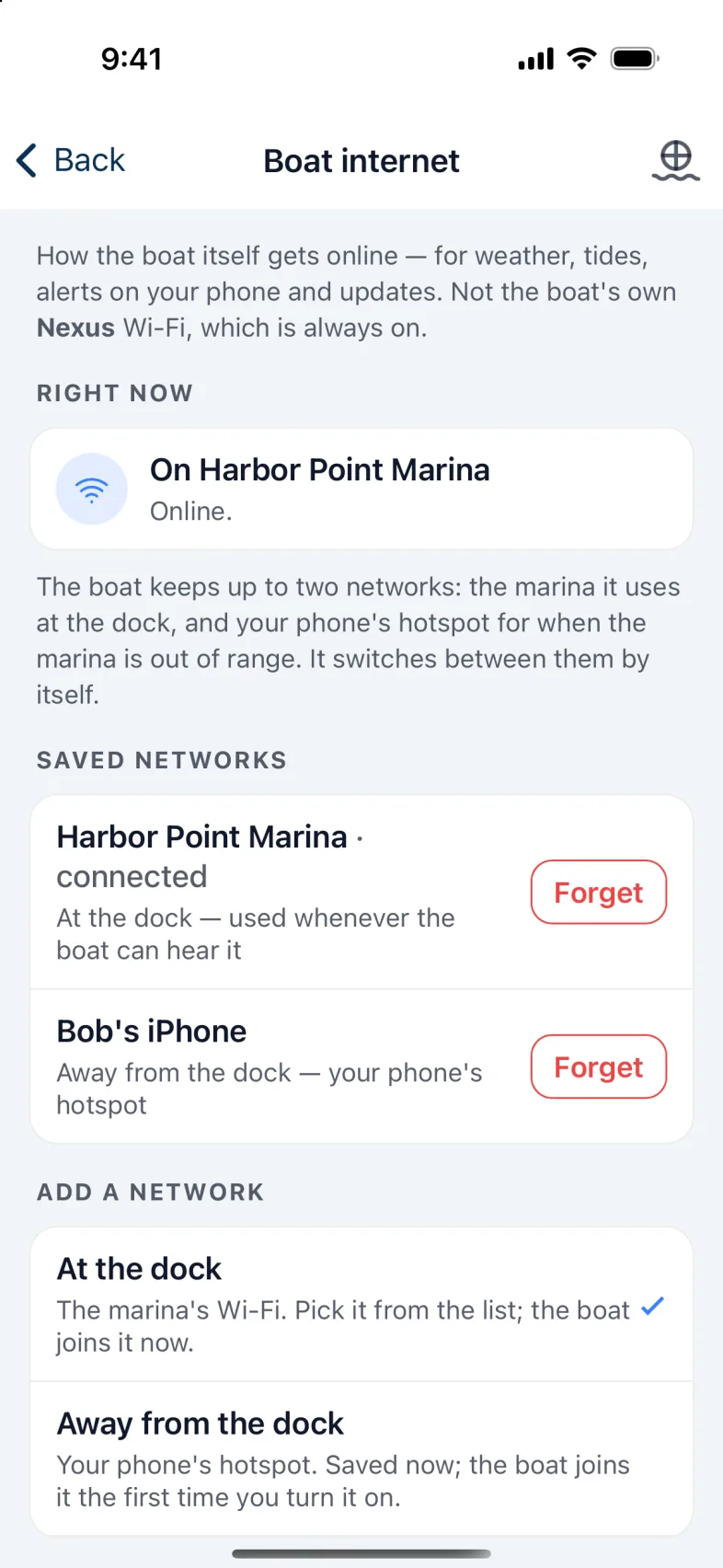
- At the dock: the marina's Wi-Fi. Leave At the dock chosen, pick the network from Networks the boat can hear, enter the password and tap Connect the boat.
- Away from the dock: your phone's hotspot. Choose Away from the dock, enter the Hotspot name and Hotspot password (at least 8 characters), and tap Save hotspot. The boat joins it the first time you turn the hotspot on.
The boat keeps both and uses whichever it can reach, the marina first.
If the marina wants you to sign in, the page says so. Join the boat's Wi-Fi on your phone, open any website, and sign in there.
If the boat is plugged into a router by cable, the page says Connected by Ethernet cable and there is nothing to set up. To add a Wi-Fi in case the cable fails, tap Set up a Wi-Fi fallback for when the cable is out.
Invite your crew
Open Settings, then My boats, then your boat, and find People.
- Tap Send an Invitation.
- Choose Crew or Owner, then Create invite.
- Tap Share link and send it by message or email. Or let them scan the code on your screen, or tap Copy link.
Each invite works once, and runs out after 7 days.
They open the link, sign in, and tap the Join button with your boat's name on it. They can also type the invite code in Settings › My boats, under Join with an invite, and tap Join boat.
Crew can see the boat, its alerts and its log, and use the anchor watch. Owners can do all that, and change the boat's settings and who has access.
If someone asks for access instead, you'll see their request under People: tap Add as crew, Add as owner or Decline.
To change someone later, tap their name under People: Make owner, Make crew or Remove from boat.
Add a watch or an iPad
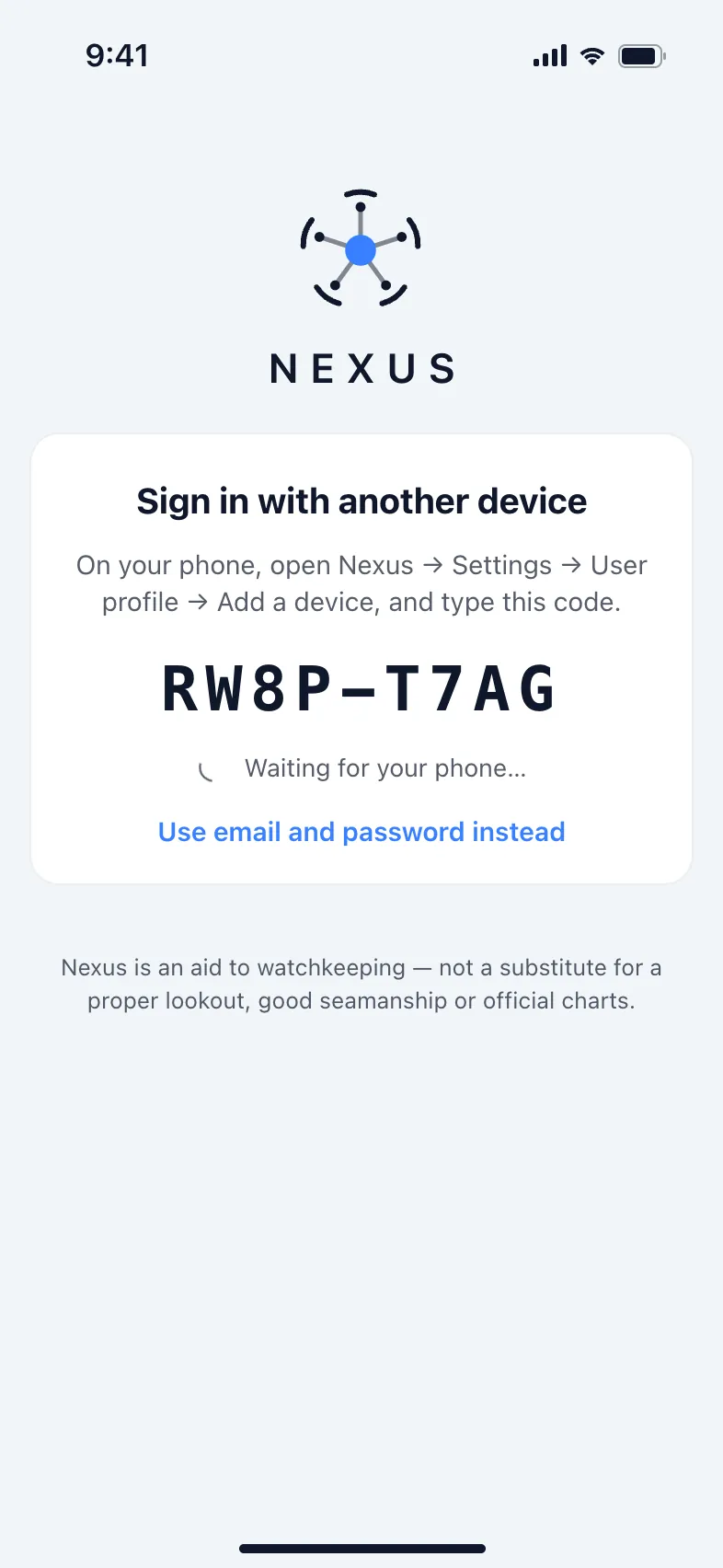
- On a watch, open Nexus: it shows a code straight away. On an iPad or another phone, open Nexus and tap Sign in with another device to get the code.
- On your phone, open Settings, then User profile, then Add a device.
- Type the code. If you have more than one boat, choose which. Tap Continue, then Sign in.
The code works for 10 minutes.
Your data, your choice
Two things are off until you turn them on:
- A cloud copy of the ship's log, so you can read it away from the boat: Settings › Data usage, then Keep a copy in the cloud under Ship's log.
- Sharing your trips with family or anyone: Settings › Share trips.
Our privacy policy says exactly what we keep and why.
Your account
Open Settings, then User profile.
- This device: give this phone a name. The boat's log uses it to show what was done from here.
- Sign out: signs this phone out.
- Delete account: we email you a 6-digit code to confirm. This removes your sign-in on every device and your link to your boats. Your boats keep their own log and data.
When our terms change, Nexus shows We've updated our terms. Read them, then tap Agree and continue. You can also Sign out or Delete my account from there. The Anchor, Chart and man overboard screens keep working until you agree.
Version 1.1 · updated 2026-10-18