The chart
Tap Chart on the Home screen. Your boat is in the middle, on official charts, with the boats around you that send AIS.
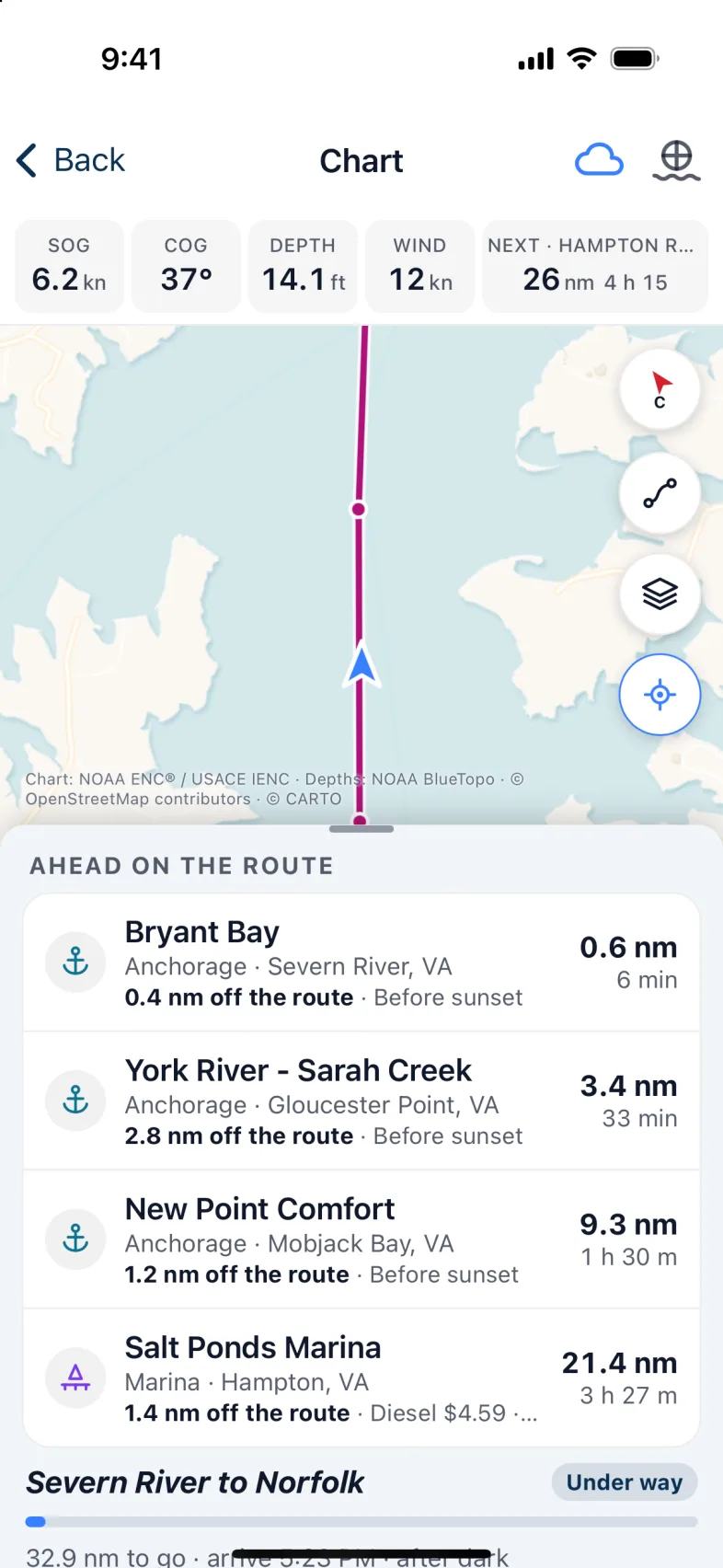
- Boxes along the top show readings. On a phone there are four: speed (SOG), course (COG), depth and wind. A tablet also shows current and tide. Tap or long-press a box to choose what it shows.
- The last box, Next, is the next bridge or place on your route. Tap it to see it in full.
- The compass button at the top switches between course up (C) and north up (N). Course up keeps the boat low on the screen, so you see more of what's ahead.
- The buttons at the bottom: Routes, the radar overlay (on the boat's Wi-Fi, with a radar), Chart layers, and Centre on the boat. Drag the chart to look around; Centre on the boat follows the boat again.
On an iPad held sideways, the readings and the route sit in a panel down the right instead. Tap the small tab at its edge to shrink it to a strip of readings.
Water too shallow for your boat (your draft plus 2 feet) is shaded blue. Set your draft in your boat's details. Until you do, Nexus assumes 6 feet.
Zoomed out, each spot shows the shallowest water in it, so a small shoal doesn't vanish. The bottom may look a little shallower than it is, never deeper.
Warning: Nexus is an aid to watchkeeping, not a substitute for a proper lookout, good seamanship or official charts. Keep your chart plotter and your eyes on the water.
Chart layers
Tap Chart layers. The sheet has three parts.
- Chart colours. Light is Auto (follows the app's dark mode), Day, Dusk or Night. Water picks the colour of the water: Standard, Blue water, High contrast or Deep is blue. Dusk has one look, so pick Day or Night to choose the water. Depth numbers is Standard, Large or Extra large.
- Show on the chart. Tap a tile to turn it on or off: Notices, Events, bridges, Anchorages, Cables, Traffic lanes, Caution areas and Radar. Only Notices is on to begin with.
- At the bottom, Notices near the boat lists the Notices to Mariners around you, and Chart key explains the marks and hazards. One of them, Too shallow for your boat, uses the draft you set for your boat, plus 2 feet.
The same colours and depth numbers are in Settings › Display options. They apply to this phone or tablet only, and to the chart under the anchor view too.
Notices, bridges and places
Notices to Mariners from the Coast Guard show as shaded areas when you zoom in. Tap one to read it. Every bridge and lock shows as a mark, amber if it needs opening for you. Tap a marina, anchorage, bridge or lock for its details. A scale in nautical miles sits at the bottom of the chart.
Boats around you
Every boat sending AIS is an arrow pointing where it's heading. A moving boat has a short line showing where it will be in six minutes. Tap a boat to see its details.
- A boat on a collision course turns red, with its name and a dashed line to the closest point: "CPA 0.2 nm in 6 min". Nexus warns you while you're under way when a boat will pass closer than 0.5 nm within 10 minutes. You can change both under Alerts.
- Navy ships are red, with the 500 and 100 yard protection zones drawn around them.
Warning: Only boats that send AIS can be shown. Many small boats don't, and a warship often doesn't.
Waypoints
- To drop a waypoint, long-press the water where you want it. Give it a Name, a Category (anchorage, marina, fuel, fishing and so on) and a Note, then tap Save waypoint. It needs a name before it can be saved.
- To mark where the boat is right now, open Routes › Waypoints and tap Mark here.
- Tap a waypoint to change or delete it.
Waypoints are saved on the boat, so every phone aboard sees them.
Routes › Tracks lists where the boat has been. The boat records a track each day it's under way.
Plan a route
- Tap Routes, then + New.
- On a phone, move the chart until the cross is where you want the first point, and tap + Add point at the cross. Do the same for each point. On an iPad, just tap the chart.
- To move a point, hold your finger on it for a moment. It grows, with a ring around it. Then drag it. When you let go, its card opens.
- A leg that crosses land, water too shallow for your boat, or a no-go or restricted area turns amber on the chart. On an iPad the panel also says why, with the distance and time. Move the point, or keep it if you know the water.
- Tap Save, and give the route a name.
You can also Import a route from a GPX file, or share one to Nexus from Navionics or another app.
Tap ⋯ beside a route to review, rename, reverse, edit, export or delete it.
Let Nexus plan it: Autoroute
- Tap Routes, then Autoroute….
- From is your boat. To start somewhere else, tap From. Tap To, move the chart until the cross is on where you're going (or tap a marina, anchorage or waypoint), and tap Set destination. The arrows beside them swap From and To.
- Under Options, choose whether to prefer the ICW, how to treat opening bridges, and whether to stay out of open water.
- Nexus works out a route for your boat's draft and air draft, so set those first in your boat's details. It shows the distance, the time, how many bridges (and how many must open), any locks, and the shallowest water.
- Read the warnings, if there are any: marks passed on the wrong side, water too shallow for your boat, shallow water on the way out of or into a harbour, closed locks, locks and bridges with set hours, and Coast Guard bridge notices.
- Tap Save, or Save & Start to follow it straight away. Edit waypoints opens it in the route editor first.
Warning: Look over every autoroute on the chart before you follow it. Nexus doesn't ask you to confirm it, and Save & Start starts it at once. If you've turned on Send the route to the autopilot, the course goes to the pilot as soon as the route starts.
Follow a route
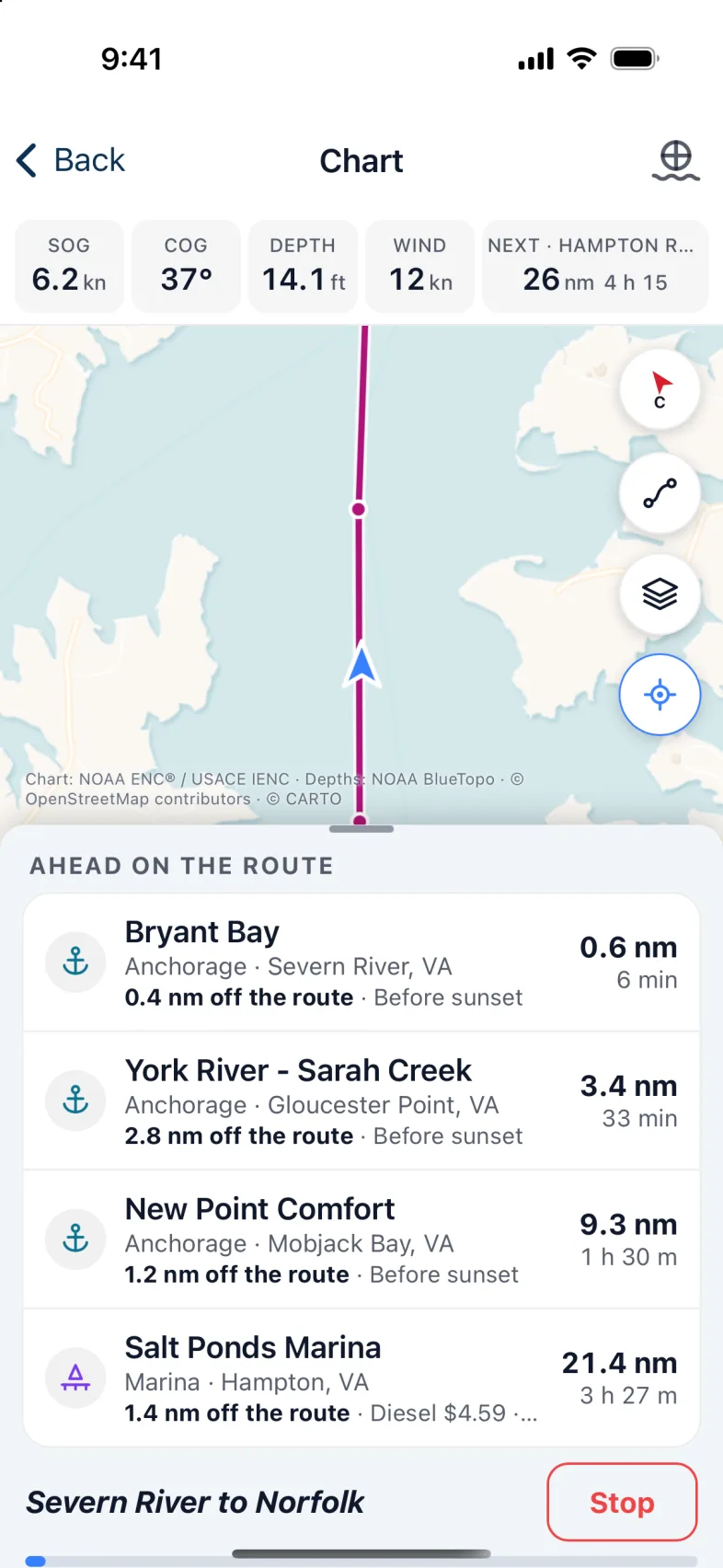
A route is Loaded (drawn on the chart) or Started (being followed). In Routes, tap Load, then Start.
While you follow it, the chart shows the leg you're on in bold and a ring around the next waypoint. The route card shows:
- the Next waypoint, its Bearing, the distance To go, and when you'll get there;
- a bar for how far you are off the line, such as "0.05 nm right — steer left";
- ‹ Previous and Next waypoint › to skip a waypoint.
If you stray more than 0.1 nm off the route, the card turns red and the Off course alarm sounds. You can change the 0.1 nm under Alerts. When you reach the last waypoint, it says "Arrived". The route doesn't stop by itself: tap Stop when you're tied up. Start again picks up from the part of the route nearest the boat.
The autopilot
Sending the route to the autopilot isn't turned on for most boats yet. If your boat can do it, you'll see Send the route to the autopilot in Routes. If you don't see it, Nexus never talks to your pilot.
If your boat has the switch, and your autopilot is on the NMEA 2000 network, Nexus can steer it along the route.
- In Routes, turn on Send the route to the autopilot. It's off until you do.
- Start a route.
- Put the pilot in Track mode on its own control.
Warning: With the switch on, any route you start goes to the pilot straight away, an autoroute too. Nexus never switches the pilot on or changes its mode: you do that, and the pilot's own control always wins. If Nexus loses the boat's position for more than a few seconds, when you stop the route, or when you arrive, it tells the pilot the route has ended.
Version 1.1 · updated 2026-10-18