Two kinds of setting
Most settings belong to the boat: units, the speaker, data usage, sharing trips, man overboard rules. Change one and every phone and watch aboard follows it. The boat has to be reachable, Direct or Cloud, to change them. If it isn't, Nexus says "No answer from the boat. Try again." or "Not connected to the boat."
A few belong to this phone only: Display options (light or dark, and the chart's colours), Keep the screen awake, the radar's display choices, and the Diagnostics report switch.
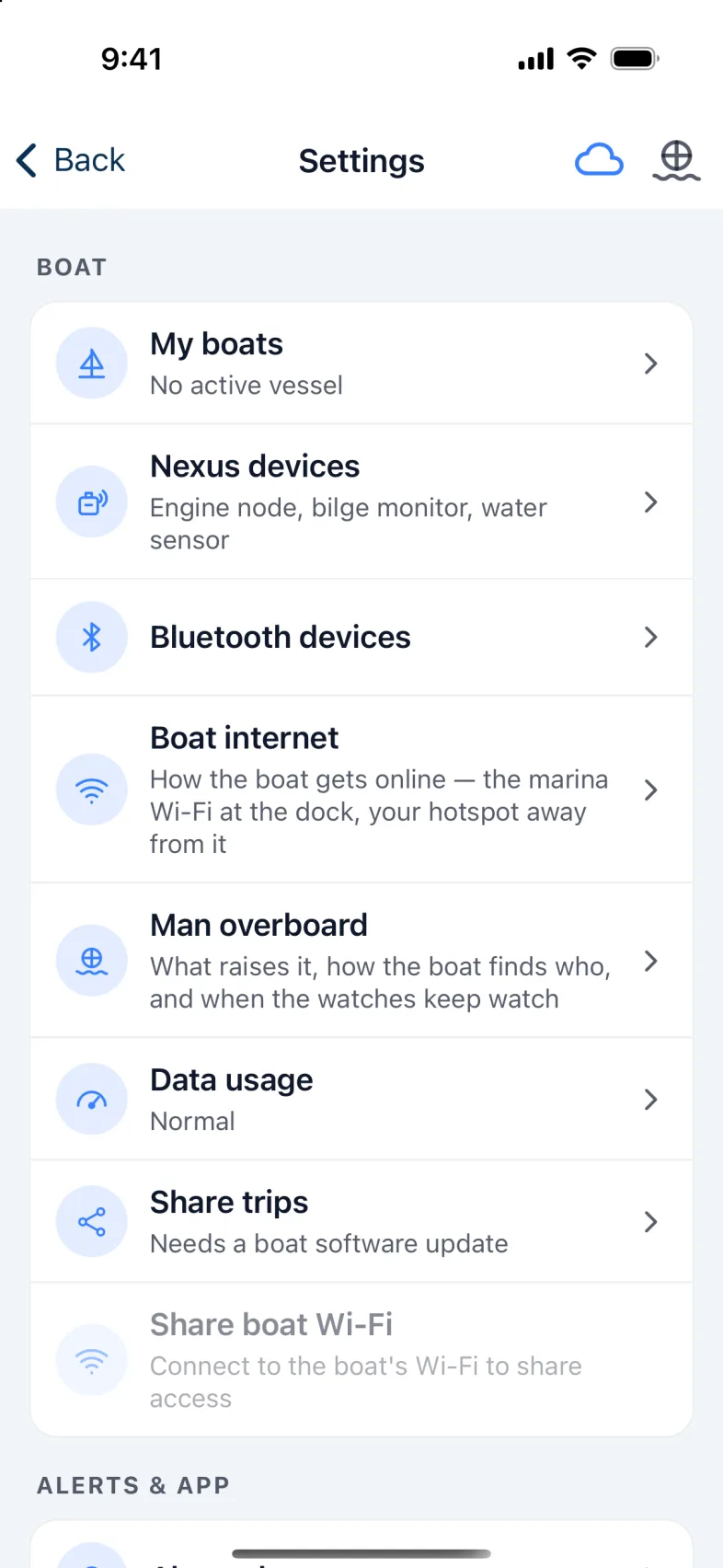
Boat
- My boats: the boat this phone is watching, and every boat on your account. Tap Select to switch. Setting up your account and boat covers adding one.
- Nexus devices: Nexus's own sensors, such as the engine node and the bilge monitor.
- Bluetooth devices: see Bluetooth.
- Boat internet: how the boat gets online: the marina's Wi-Fi at the dock, your phone's hotspot away from it. See Setting up your account and boat.
- Man overboard: what raises a man overboard alarm, and when the watches keep watch. See Man overboard.
- Data usage: how much the boat downloads over its internet link. See below.
- Share trips: who can follow your boat's track. See below.
- Share boat Wi-Fi: shows a code a guest's phone camera can scan to join the boat's Wi-Fi. It works only while you're on the boat's Wi-Fi yourself.
Alerts & app
- Alert rules: which alarms you want. See Alerts.
- Boat speaker: sound every alarm on a USB speaker plugged into the Nexus unit. Open it to turn Alarms on the boat's speaker on or off, and to set the Speaker volume. It never goes below 30%, so an alarm is always heard, and man overboard always plays at 50% or more. With a speaker connected, Play a test sound plays three notes and "Vessel close", once, at the volume you chose.
- Display options: on this phone only. See below.
- Keep the screen awake: stops the screen going dark on Anchor, Chart, Dashboard and Radar.
Note: The speaker needs to take sound over USB, not just power from it. When it's working, the line under its name shows the speaker's name and "ready".
Display options
These choices are for this phone or tablet only.
- Appearance: System follows the phone's own light or dark setting. Or pick Light or Dark to keep one.
- Chart water, day colours and Chart water, night colours: each can be Standard, Blue water, High contrast or Deep is blue. Marks, hazards and warnings keep their colours in every one.
- Depth numbers on the chart: Standard, Large or Extra large.
The chart uses day colours in light mode and night colours in dark mode, unless you pick Day, Dusk or Night in the chart's layers button. That button has the same water colours and depth number sizes too.
Help
Diagnostics checks how Nexus runs on this phone: the chart, the connection, and the phone itself.
- Tap Diagnostics, then Run diagnostics.
- Keep the app open for about 30 seconds. The chart zooms in and out by itself while it measures.
- Read the short answer at the top, such as "All good". The details are below it.
Share sends the results however you like. Send to Nexus sends them to our support team, never where you are. You need to be signed in to send. Check again runs it once more.
Tell Nexus if the chart goes blank sends the same numbers by itself if your chart ever goes blank. It's off until you turn it on.
The Diagnostics line in Settings shows the last result and when it ran.
Units
Under Unit preferences, choose Metric or Imperial for everything at once, or change one at a time: length, speed, temperature, pressure, engine pressure and volume. If you change one yourself, the preset shows Custom. Units belong to the boat, so the whole crew sees the same.
Distances over water are always in nautical miles, whichever you choose.
Connection
Shows whether this phone is online, under Internet, and whether your boat is answering. When it is, the boat's line says Connected, with Direct or Cloud under its name.
Data usage
The boat's internet link may be a hotspot or a metered marina connection, so you choose how often it downloads:
- Live sea state: Always, Only while stopped, or Never.
- Weather forecast: every 15 minutes, hourly, or every 3 hours.
- Tides & marine forecast: every 2 or every 6 hours.
- Updates to a phone away from the boat: how often a phone on Cloud gets new numbers. On Direct, it's always live.
Use low data picks the thriftiest of each at once. Each choice shows roughly what it costs a day.
The Ship's log switch, Keep a copy in the cloud, is off unless you turn it on. Turning it off again deletes the cloud copy, after asking. The log aboard is never touched.
Under Charts on the boat, the boat keeps the chart of the waters it's in, so the chart works with no internet. Small nightly updates come on any connection. A whole region, or a big update, waits for Wi-Fi unless you turn on Download whole regions on any connection. A phone hotspot saved as the boat's backup doesn't count as Wi-Fi. Use low data turns this switch off. Below it, each region the boat keeps is listed.
Share trips
Choose who can see your boat's trips:
- Private: only the boat sees them. Nothing is sent anywhere. This is where every boat starts.
- Shared: only people you've sent a link to. Tap New link, say who it's for (only you see the name), then Copy link and send it. Each link has its own key: Stop ends one without the others.
- Public: anyone with the address can follow the boat at track.compendiumnav.com. When you pick it, Nexus asks you for the address. Shared links keep working too.
You decide what the page shows: a Delay of none, 1 hour or 6 hours; Hide the home berth; your Planned route and arrival; and Weather and waves. With Hide the home berth on, tap Set to here while you're at the dock. Batteries, tanks, engine alarms and the anchor watch are never on the page.
Applies to chooses Every trip or Just this trip.
Going back to Private asks first. Then it stops every link and deletes the copy on the share server. The track stays on the boat.
Account
- User profile: your email, this device's name, Add a device for a watch, tablet or another phone, My boats, Sign out, and Delete account.
- About: the app's version, where its charts and data come from, and links to the privacy policy, terms and support.
- Sign out: signs this phone out straight away. It stops this phone's alarms and Lock Screen anchor card, and the boat stops sending it notifications.
Warning: After you sign out, this phone no longer hears your boat's alarms. Make sure someone else's phone is watching before you do it at anchor.
Deleting your account
- Open Settings › User profile, and tap Delete account.
- Read what it deletes, then tap Continue.
- Type the 6-digit code we email you, and tap Delete my account.
Your boats keep their own log and data. A boat only you owned can be set up again on another account.
Version 1.1 · updated 2026-10-18